
TeamViewer Installation Guide - Windows
- Click on this link to download TeamViewer. Please use this link only
- Once the download is complete, open the downloaded file
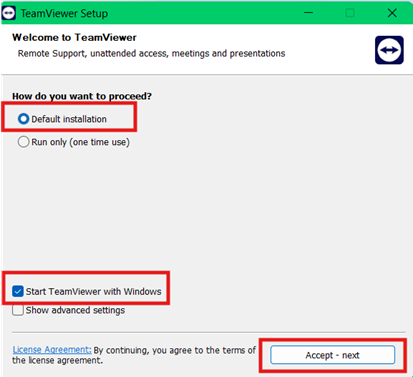
- When the setup window appears: Click on Default Installation and Start TeamViewer with Windows, then click Accept - next
- A Windows prompt will appear asking for permission. Click Yes to allow changes
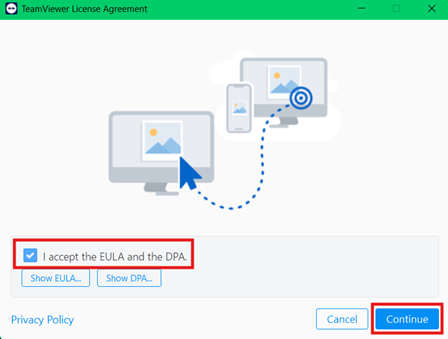
- Tick the checkbox to accept the TeamViewer EULA and DPA, then click Continue
- After the installation is complete, TeamViewer will open. A setup window will pop-up:
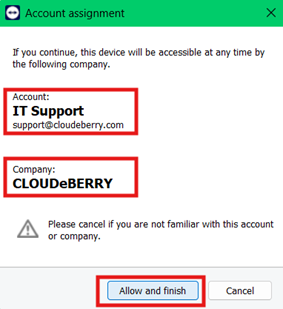
- Confirm that it shows our email address and company name, then click Allow and Finish
- Finally, take a screenshot of the TeamViewer ID and Password and send it to us
Was this article helpful?
That’s Great!
Thank you for your feedback
Sorry! We couldn't be helpful
Thank you for your feedback
Feedback sent
We appreciate your effort and will try to fix the article